
How to Send Photos and docs on WhatsApp WebAs far as staying in touch goes, WhatsApp Web is one of the most convenient ways to stay connected to others. By the time you get there, you can start sending and receiving messages right from your device. With WhatsApp Web, it’s easy to get in touch with anyone regardless of how you use it whether you’re taking the class to work on your assignments, creating a team document or simply chatting with your friends over text. In this guide, learn all the basics to easily send photos and documents on WhatsApp Web, including tips for making the most of Zap Web integrations.
Why Use WhatsApp Web for Sending Files
One of the main reasons why people love WhatsApp Web is that it dramatically reduces the amount of time it takes to move files from phone to computer by hand. This way you can easily send a bunch of big documents, PDFs, pictures and videos from your desktop. It not only saves you time, but it also keeps the original quality of the media you want to share. There’s even Zap Web, which makes some of these file-sharing tasks automated so that the process goes much smoother than ever before.
Step-by-Step Guide to Sending Photos on WhatsApp Web
Sending photos on WhatsApp Web is very straightforward:
- Open WhatsApp Web in the web browser and scan the QR code on your phone
- Select the chat where you want to send the photo
- Press the paperclip (attachment) icon in the top-right corner of the chat window.
- Click ” Photo & Videos ” and then pull the image from your computer.
- Hit the send button, and your photo is instantly delivered.
If you go with Zap Web along with WhatsApp Web, you can even automate the sharing of photos from cloud storage services like Google Drive or Dropbox. So no more uploading pictures to the storage service by hand.
Sending Documents Without Hassle
Documents are sent just as easily as pictures on WhatsApp Web. Whether you send it as a Word file, an Excel spreadsheet or a PDF
- Open the desired conversation on WhatsApp Web.
- Click the paperclip icon and choose “Document.”
- Go to your computer, select the file you want to send.
- Press send, and it will be delivered instantly.
For users who deal with repetitive file sharing, Zap Web can be a game changer; you can build workflows to automatically send reports, invoices, or any other type of document to a group or individual contact and save time and ensure consistency.
Tips to Make File Sharing Faster
To maximize efficiency on WhatsApp Web, consider these tips:
- Keep files in order. Keep your pictures / documents organized in folders that are easy to find.
- Use Keyboard Shortcuts: Get a taste of WhatsApp Web’s shortcuts to quickly navigate.
- Combination with Zap Web: Automate repetitive tasks like sending weekly updates or sharing promotional material.
- Drag and Drop. You just need to drag files from your desktop into the chat window to speed things up.
These things make WhatsApp Web much more powerful – and save a lot of time.
Why Zap Web is the Perfect Companion for WhatsApp Web
Zap Web is a tool for connecting WhatsApp Web with hundreds of other apps and platforms. For example, you can set up a workflow that sends updates to new photos uploaded to a Google Drive folder to a WhatsApp group. This is especially useful for companies, marketing teams or educational institutions that don’t have time to manually update their accounts.
With Zap Web, you can:
- Automatically send new order confirmations via WhatsApp Web.
- Share real-time reports with your team.
- Deliver reminders or event invitations to multiple contacts simultaneously.
This package of Zap Web and WhatsApp Web reduces manual work as well as helping you stay consistent with your communication.
Common Issues and How to Fix Them
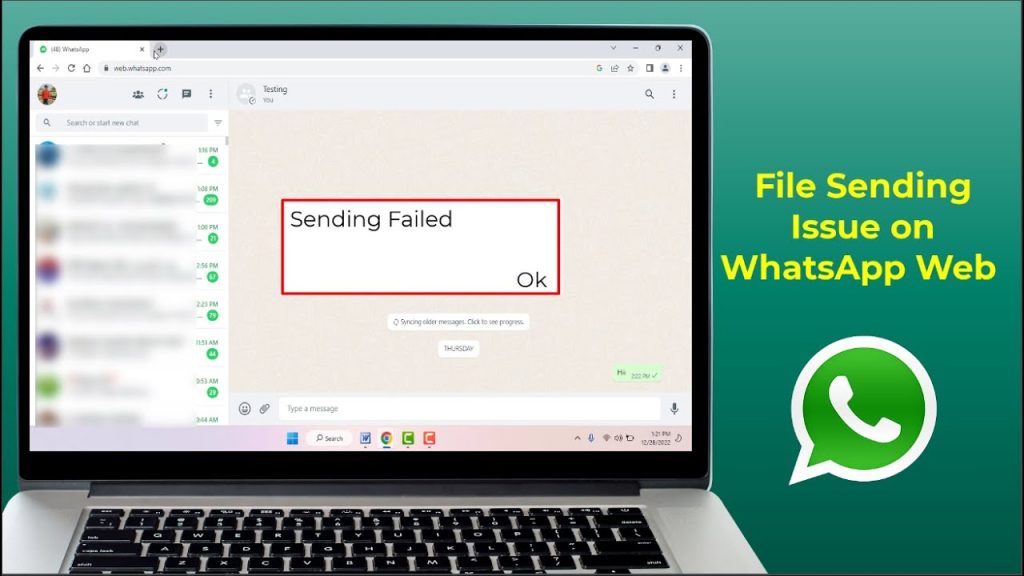
Sometimes WhatsApp Web won’t send photos or documents for some reason – try to make sure your phone is connected to the Internet because WhatsApp Web will be copying what you’re doing on your phone. Check web browser permissions as well – if you’re using Zap Web automation and it stops working, check your workflows – and if necessary, reconnect the apps that are connected.
Final Thoughts
All the steps you need to remember to send photos and documents on WhatsApp Web quickly and easily. And when you use them together with Zap Web, you can automate repetitive tasks, streamline communication and save a lot of time. In order to share files on WhatsApp Web, for personal or business, you’ll need to follow these steps for a hassle-free file transfer every time.